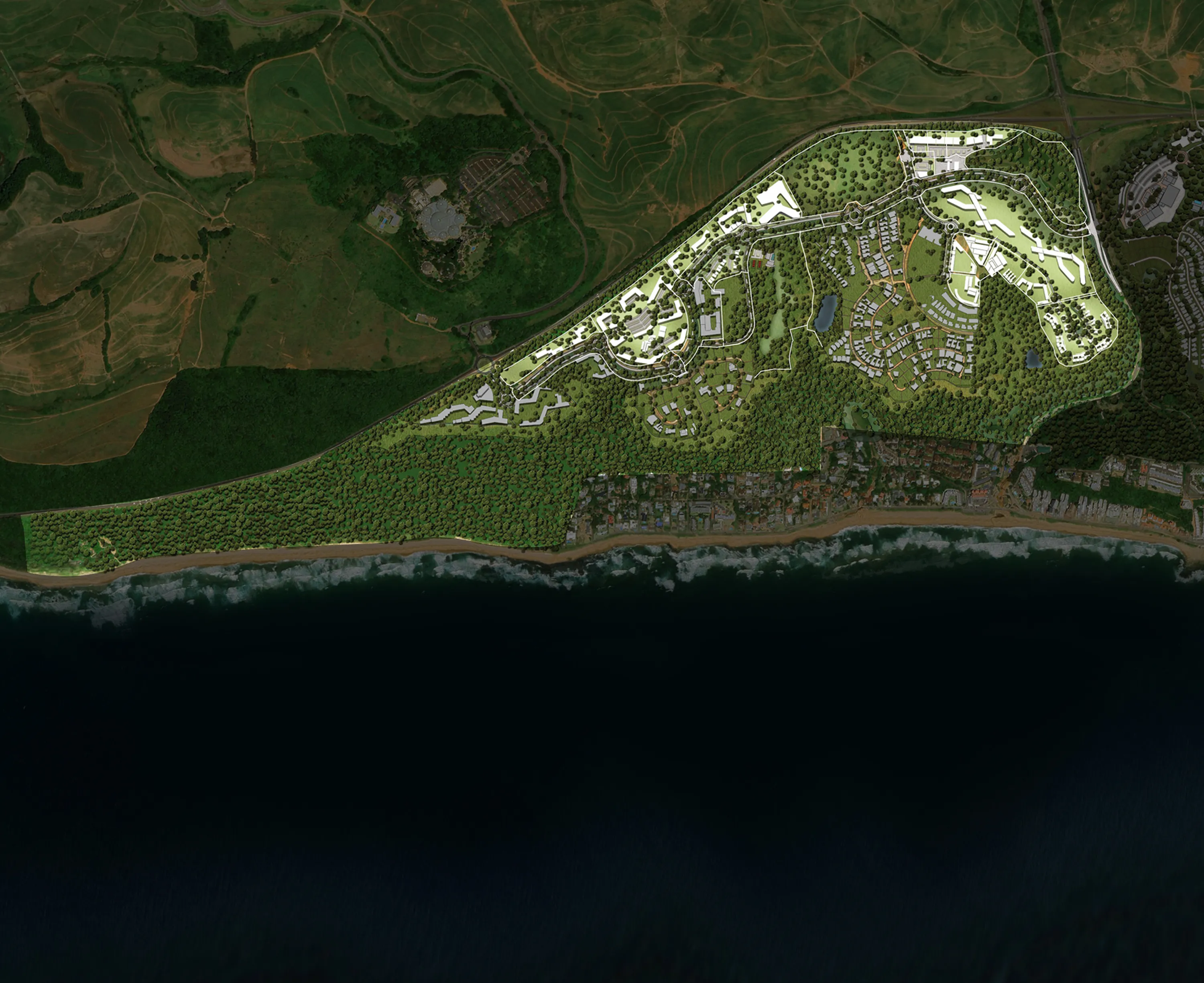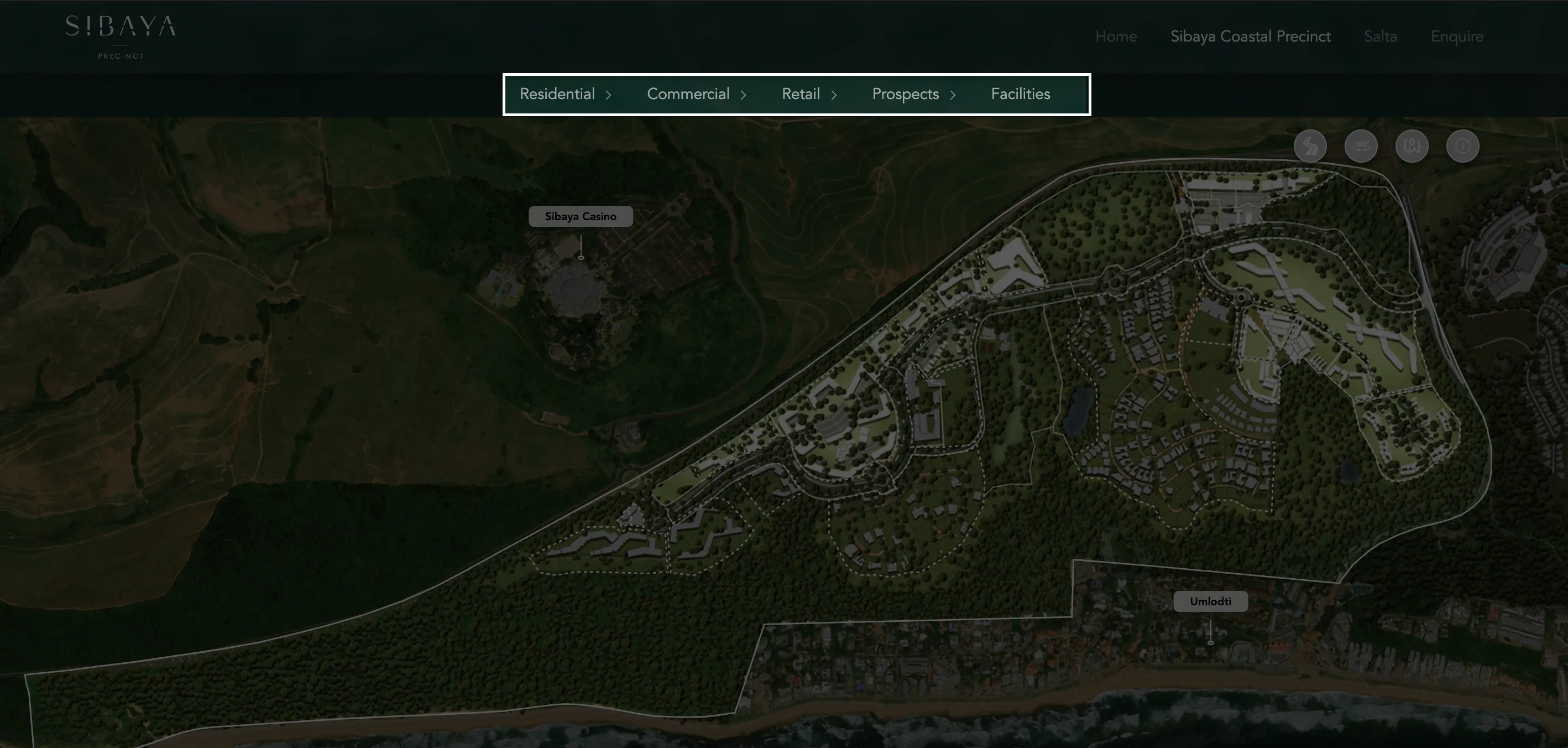
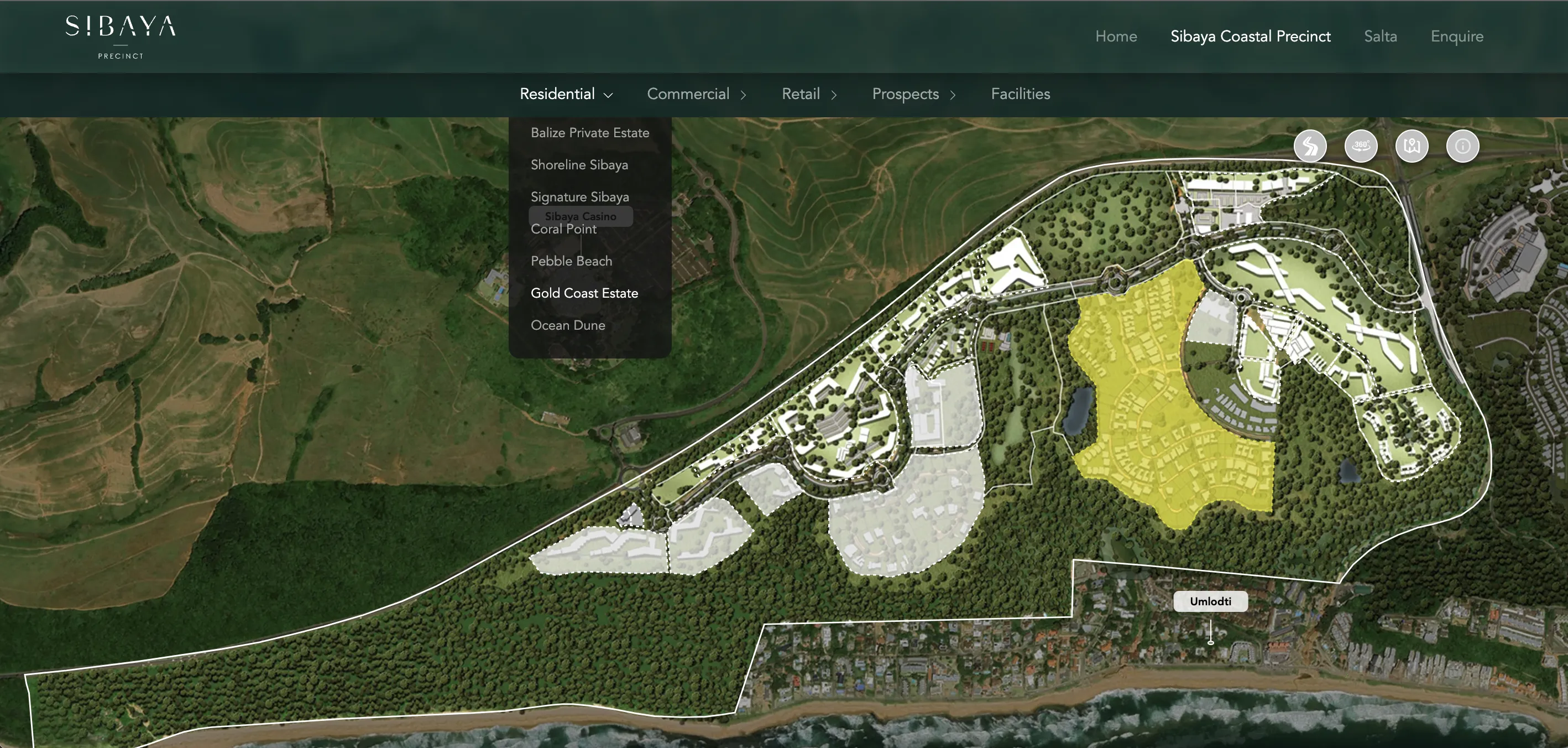

Here you will find an additional sub-navigation bar. You can now click on one of the drop-downs to view more opportunities for that category.
Hovering on a sub-category
When you hover a sub-category the related opportunity will be highlighted in white, while the exact opportunity you are hovering will be highlighted yellow.
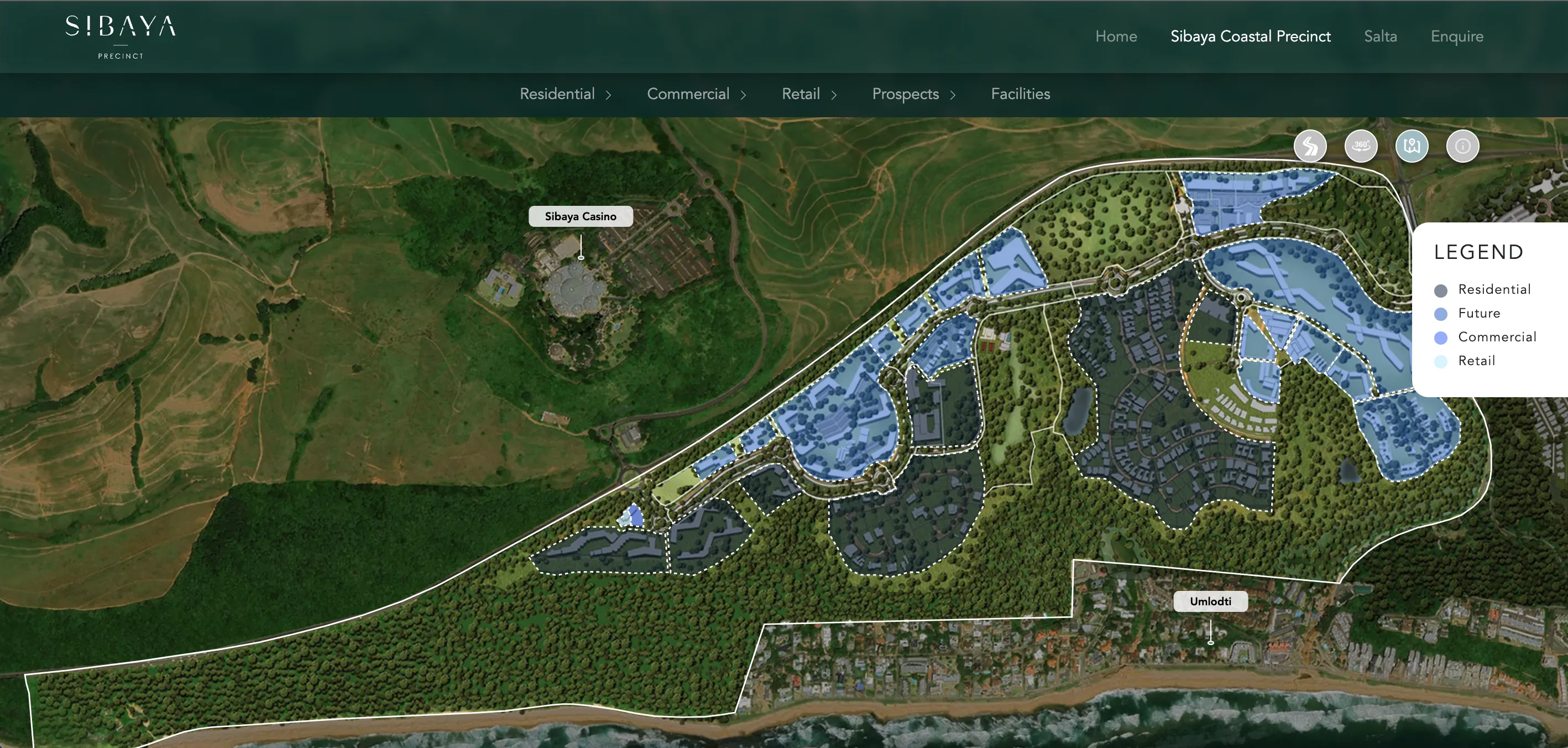
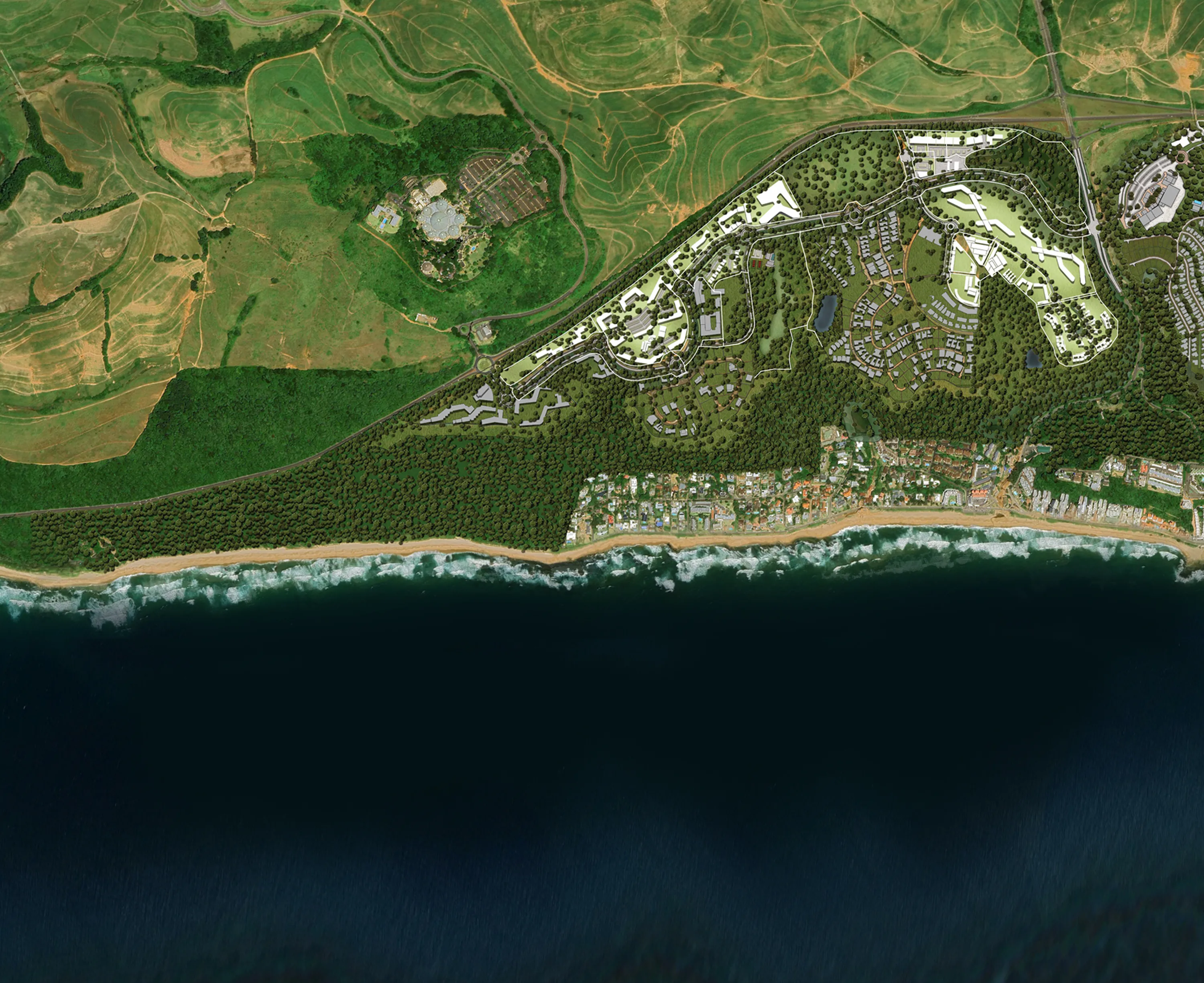
Area Info Button
Click on the Area Info button to get an overview of where the different opportunities are.
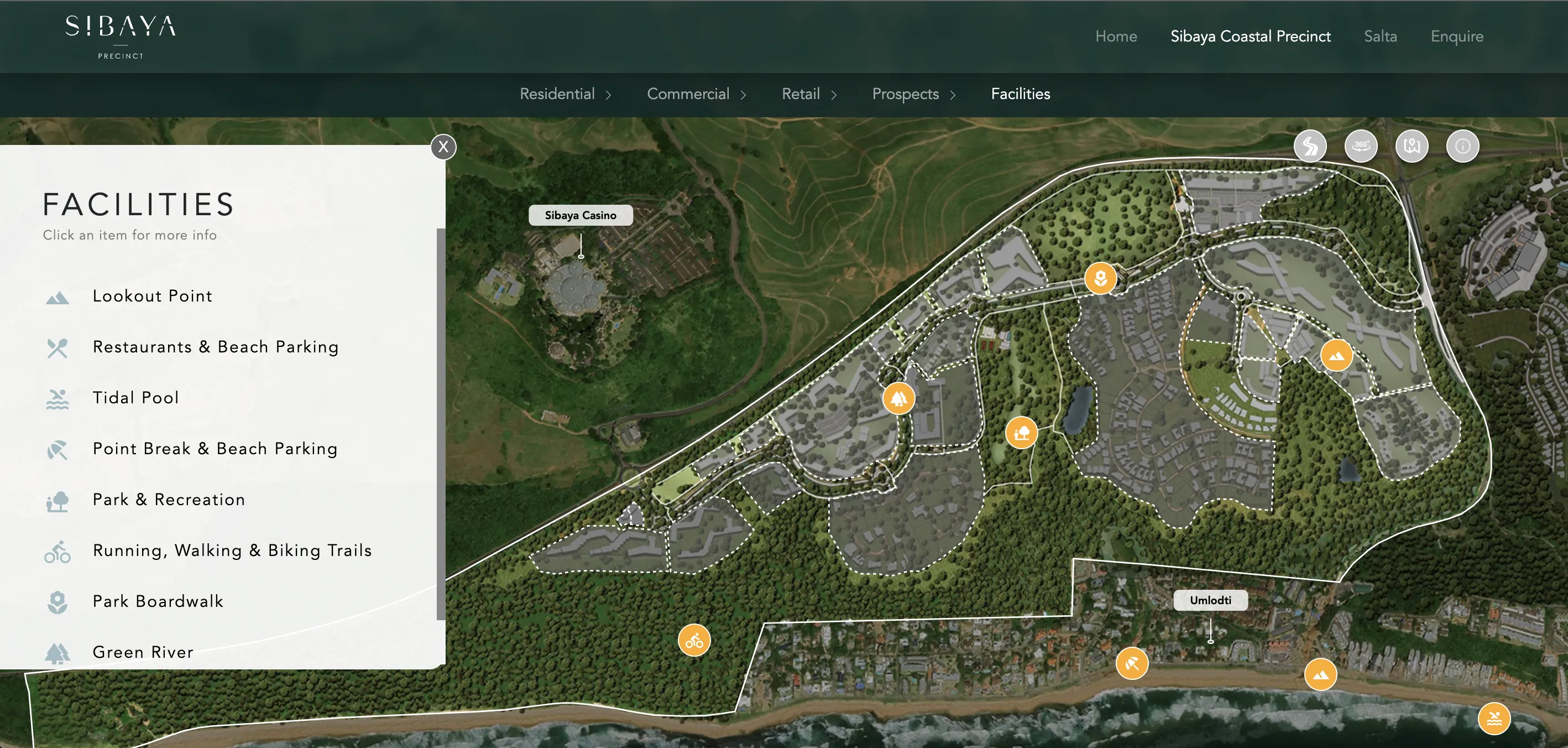
Facilities Button
Here you can click on the Facilities button which will bring up a side-navigation menu, allowing you to then click on a specific facility to view more information.
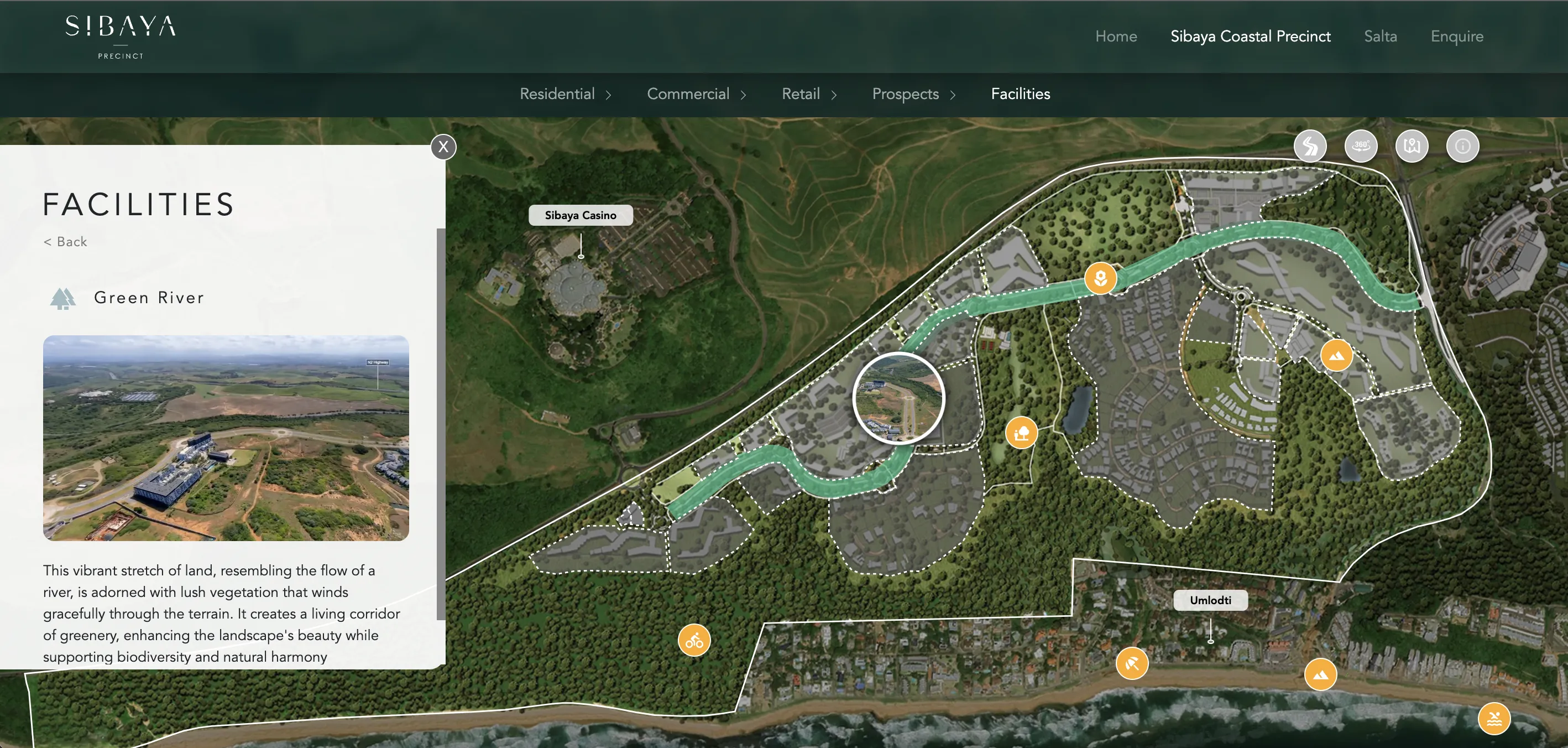
Clicking on a Facility
Once you have clicked on a Facility item, and finished reading the information, you can click on the back button to return to the main facility view.
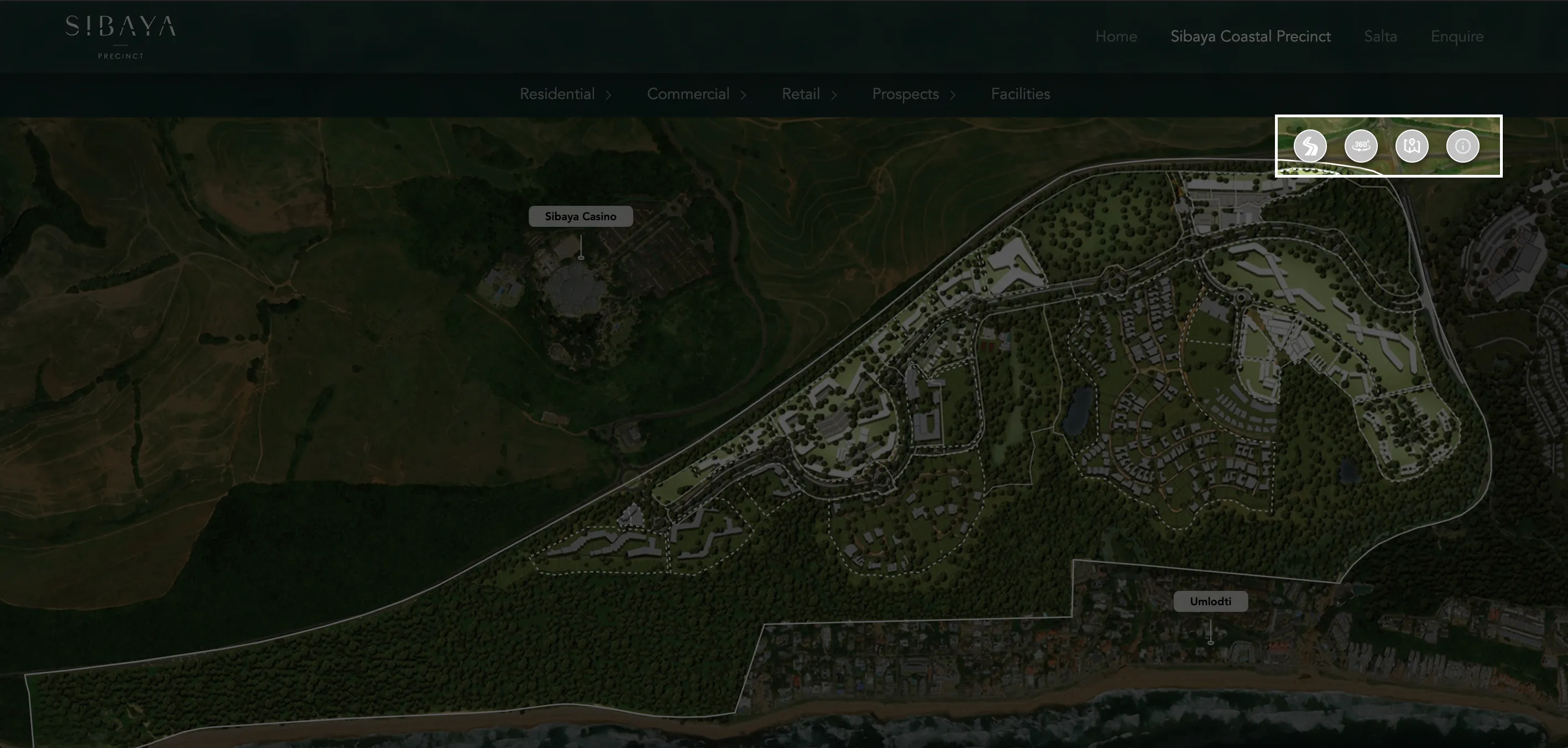
Need Help?
If you ever want to view this helpful tutorial again, click the information button in the top right corner.